
If you are performing in PyJam, recording a highlight video for your PyLadies chapter, or giving any other pre-recorded session at PyLadiesCon 2026, you can now send us your video. It goes through the PyLadiesCon portal, from your own session page, and the deadline is 21 November 2026.
When we opened the portal to speakers we said that uploading recordings was something we were still building. We are happy to announce that it is now open. Let us walk you through what it looks like, and what to expect after you press Upload.
What it replaces
In past years we shared a Google Drive folder with each speaker. It worked, mostly, and it had
problems we never liked. You needed a Google account to upload to it, so people without one
were left out or had to find a workaround. Once your file was in a shared folder, keeping track
of it was on us: which version was the latest, whether anyone had checked its length, and where
the edited version went when it came back. And a Drive folder lets you upload a file, but it
tells nobody what the file is. There is no place to say “this is the transcript, reviewed by the
team” or “this is the final cut, approved by the speaker”, so we all relied on file names like
transcript-v1, transcript-v2-final, transcript-v2-final-approved, and hoped everyone read
them the same way.
The portal does away with all of that. You sign in with whatever email address you gave us, and upload from your session page. Every file carries what it is and which version it is, the portal checks the length, and it shows you what the team does with it next. It not only lets us share files with each other securely, it helps all of us understand and keep track of where your session is.
How the upload works
Open Speaking, then My sessions, and choose your session. At the top is a tile for your video; while there is nothing in it, it says so, and shows the length limit for your kind of session. A PyJam performance and a chapter highlight have different limits, and the page shows yours.
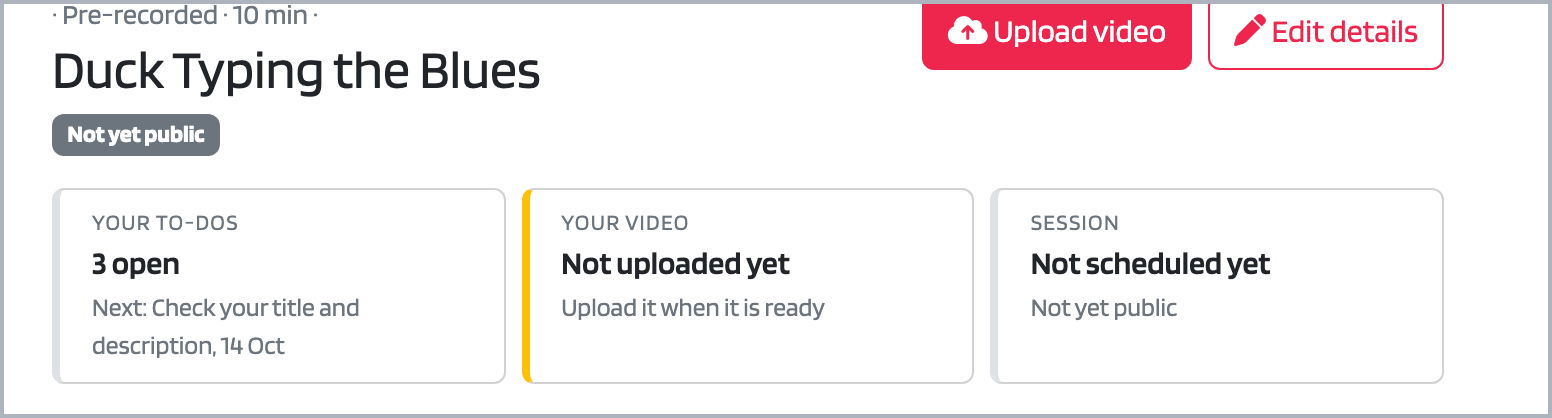
Your session page before the upload. The names are practice data.
Choose Upload video, pick the file, and choose Upload. The file goes straight to our storage in pieces, a few at a time, so a file of several gigabytes is fine. If your connection drops, nothing is lost: come back, choose the same file again, and it carries on from where it stopped.
When it is done you see version 1, and within a moment its length against the limit: a green bar if it fits, a red one with a plain message if it does not. Performances over the limit are the thing we most often had to cut by hand in past years, so now the portal tells you before we have to.
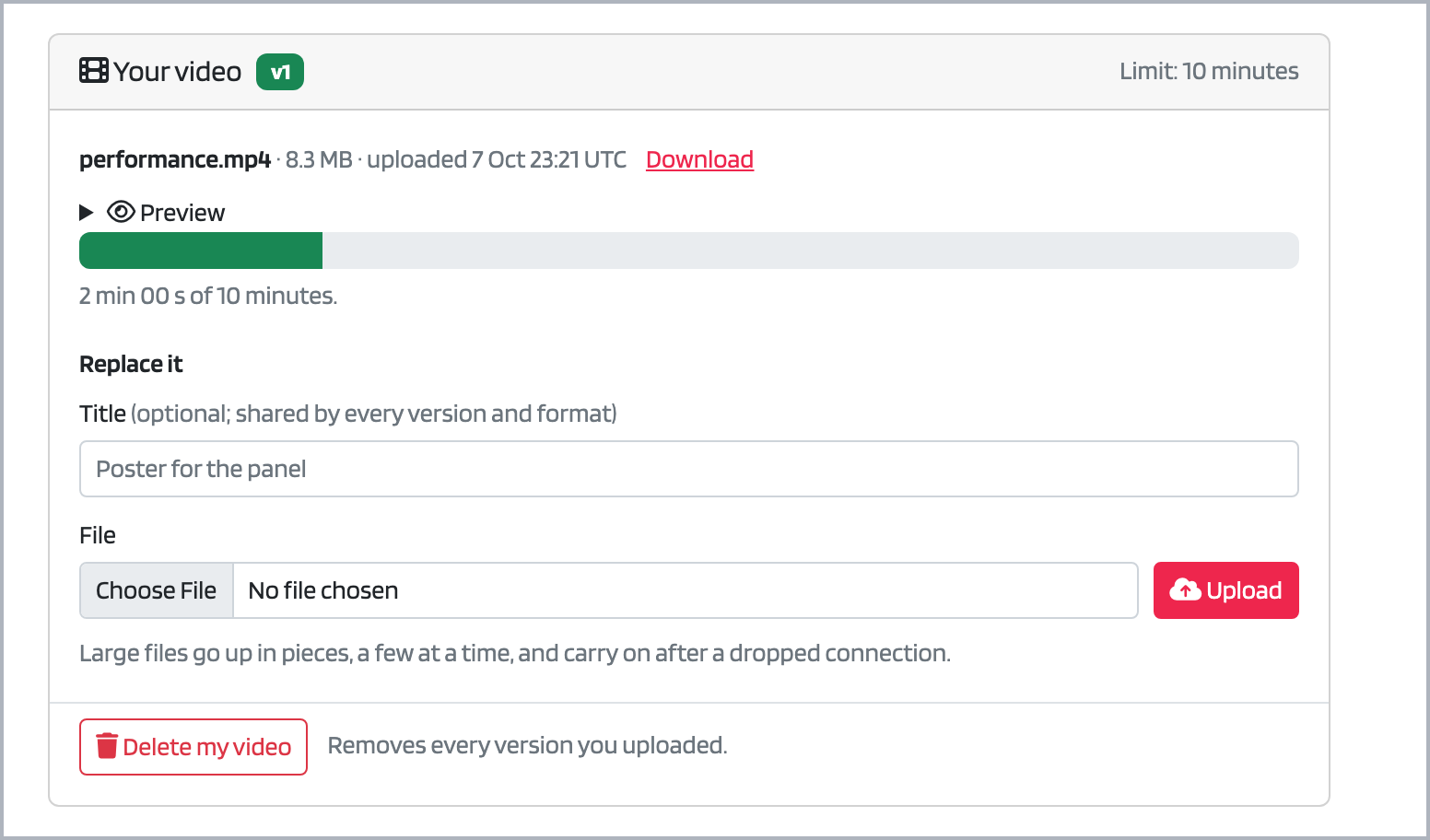
Your video after the upload: the length is checked against the limit, and a new take becomes the next version. Practice data.
Uploaded your video, but now want to send a different one, because the first was too long, or you forgot to mention something? Replace video makes it version 2, and we always work from your newest one. Earlier versions stay listed under the card in case you want one back. And if you simply decide you do not want to share a video with us anymore, you can delete it: you have full control over the files you submit to us, and deleting removes every version from our systems and our storage, so download a copy first.
What happens after you upload
Your upload ticks Upload your performance video on your checklist, and tells your liaison, the organizer looking after you, at once. Then the third list on your checklist, What we’re preparing for your video, takes over. You can watch your video move through the team’s work: the quality and length check, the transcript and its review, translations, the title card and final cut, and the YouTube publish scheduled for your slot.
A word on transcripts. The portal makes the first draft of your transcript itself: it runs
Whisper, the open source speech recognition model (the
small model, through faster-whisper), on our own worker, and a person on the team reviews the
draft. Your recording is not sent to an outside transcription service.
Files from the team
Sharing goes the other way too. The poster and social cards for your session, the transcript for you to check, and the final cut of your video all come back to you through the same page, under Files from the team on the Files tab. Each file has a title that says what it is, a Preview that opens it right there, and a Download button.
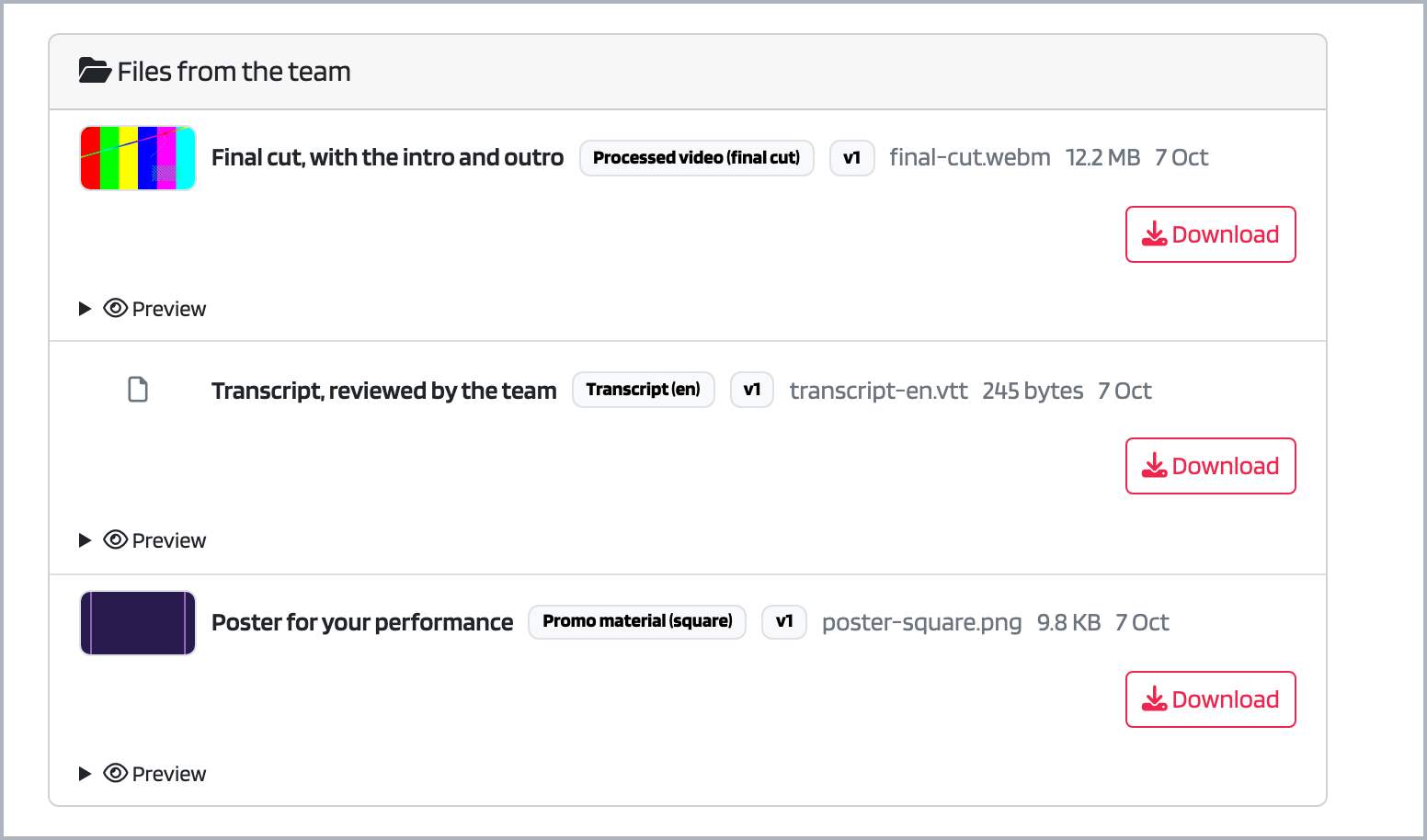
What the team shared, on your Files tab. Practice data.
You do not need to keep checking. The portal sends you at most one email a day, the same one that reminds you of to-dos coming due, and when the team has shared something new it lists the files and points you to your session page. The email never carries the files or links to them: the portal only ever hands out links that expire a minute after you click, so there is no link floating around a thread that anyone could follow later.
When the final cut arrives, a to-do opens: Approve the final cut. Watch it, and if you are happy for it to go out, tick it. If something needs fixing, tell us what and where, and we will fix it before anything is published.
Your files and who can see them
Your video and the team’s files live in private storage. There is no public link to any of them. You can fetch your own video and whatever the team has shared with you; the organizers and your liaison can fetch everything on your session; nobody else can. The team’s reviewer notes on a file stay with the team. Files are kept until someone deletes them, and you can delete your own video yourself, or ask us to.
The portal is open source, so you do not have to take our word for any of this: the code is on GitHub.
Getting started
- Record your video to the specs in the Video guide: landscape, MP4 preferred, and within the length for your session (up to 10 minutes for PyJam; see the PyJam performer guide).
- Sign in to the portal, open Speaking, My sessions, and your session.
- Choose Upload video, pick the file, and choose Upload.
- Check the length bar, and you are done. Keep an eye on your email for the files we send back.
The deadline for your video is 21 November 2026. If you cannot make it, or cannot use the upload for any reason, reply to any email from the portal and tell us; we would rather find another way than have you stuck.
See how it works
Here it is on screen, in three short recordings. All of them use practice data, not real people.
Uploading your performance video:
Sending a new take, or removing your video:
Finding the files the team shared, and approving the final cut:
For the written steps, what every message on the page means, and what to do if something goes wrong, read Your video and files in the portal documentation.
Thank you for recording for us. We cannot wait to see what you have made.
Stay Connected 🔗
Don’t miss a beat! Follow us for announcements and updates.
- Blog: conference.pyladies.com/blog
- RSS Feed: conference.pyladies.com/rss.xml
- Social Media: Find our social media handles at the footer.
- Official Conference Hashtag: #PyLadiesCon